Employee
The Employee Module in Ace CBM provides an organized and efficient method to manage employee records. Adding a new employee ensures that all necessary personal, professional, and financial details are accurately recorded and accessible for HR and administrative operations.
Steps to Add a New Employee
-
Access the Employee Form
- Navigate to the Employee New section under the Employee module from the Ace CBM dashboard.
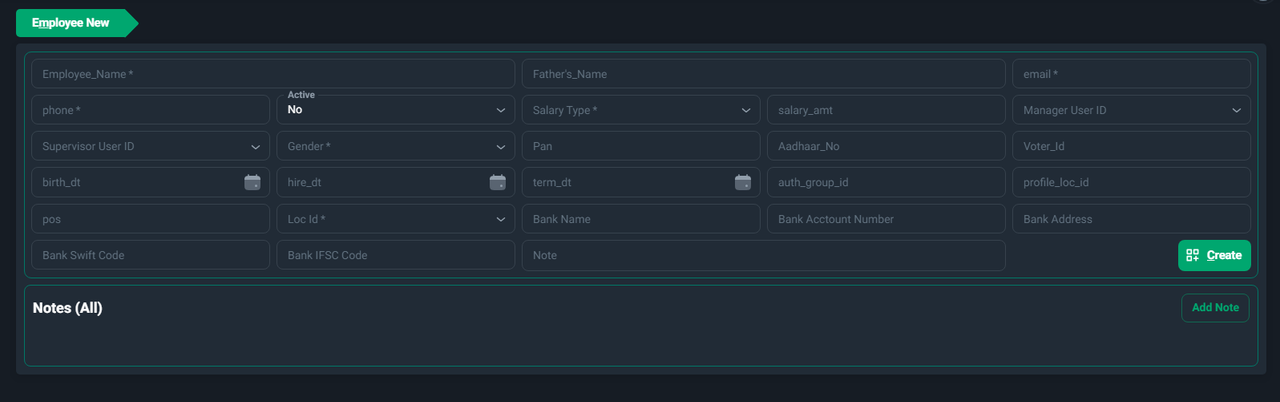
- Navigate to the Employee New section under the Employee module from the Ace CBM dashboard.
-
Fill in Personal Details
- Employee Name: Enter the full name of the employee (mandatory).
- Father's Name: Provide the name of the employee's father.
- Phone: Enter the employee’s phone number (mandatory).
- Email: Provide the employee's official email address.
- Gender: Select the gender of the employee (mandatory).
- Birth Date: Specify the employee’s date of birth.
-
Set Employment Details
- Active: Set the employee’s status as "Active" or "No" depending on their current employment status.
- Hire Date: Add the date when the employee joined the organization.
- Termination Date: If applicable, provide the date when the employee left or will leave the organization.
- Supervisor User ID: Assign a supervisor to the employee.
- Manager User ID: Select the employee’s manager from the dropdown.
-
Define Salary and Identification Details
- Salary Type: Specify the type of salary, such as hourly, monthly, or annual.
- Salary Amount: Enter the agreed salary amount.
- PAN: Provide the employee’s Permanent Account Number for tax purposes.
- Aadhaar Number: Enter the Aadhaar number for identity verification (if applicable).
- Voter ID: Add the voter ID number, if necessary.
-
Assign Role and Location
- Position (POS): Specify the employee’s job title or position in the organization.
- Location ID (Loc ID): Assign the location where the employee is based.
-
Banking Information
- Bank Name: Provide the name of the employee's bank.
- Bank Account Number: Enter the employee’s bank account number for salary deposits.
- Bank Address: Add the address of the employee's bank branch.
- Bank Swift Code: For international transactions, provide the SWIFT code.
- Bank IFSC Code: Specify the IFSC code for Indian bank transactions.
-
Additional Information
- Authorization Group ID: Assign the authorization group ID for system access and permissions.
- Profile Location ID: Include the profile location identifier, if applicable.
- Notes: Use the Add Note section to include any additional remarks or instructions.
-
Save Employee Details
- Once all fields are accurately filled, click Create to save the employee's information.
Benefits of Adding Employees in Ace CBM
- Centralized Data Management: Consolidate all employee information in one platform for easy access and updates.
- Streamlined HR Operations: Simplifies payroll processing, tax management, and organizational hierarchy.
- Improved Accuracy: Reduces errors in data entry and ensures compliance with statutory requirements.
- Seamless Communication: Maintains updated contact information for effective internal communication.
Veiwing the Employee List
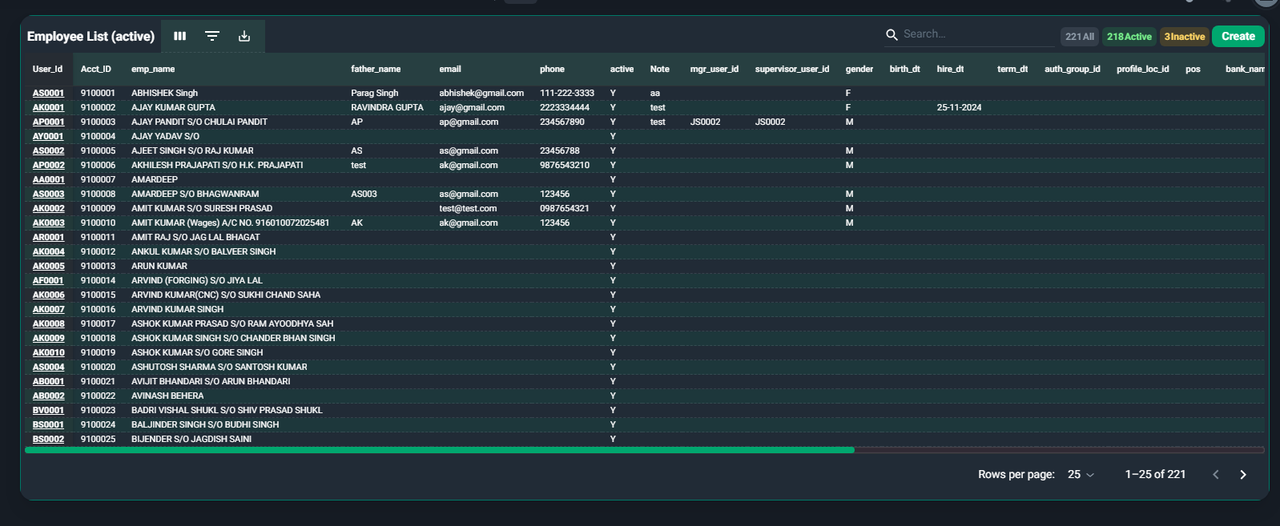
The Employee List in Ace CBM provides an intuitive interface to manage and track employee details efficiently. This feature helps organizations centralize workforce data and enhance HR operations by providing quick access to critical employee information.
Features of the Employee List
-
Comprehensive Overview
- Displays essential details like employee name, email, phone number, employment status, gender, date of birth, hire date, termination date (if applicable), reporting managers, and more.
- Provides clear differentiation between Active, Inactive, and All employees.
-
Filters and Search Options
- Quickly search for employees by user ID, name, department, or other attributes.
- Use advanced filters to refine the list based on specific criteria such as location, position, or status.
-
Dynamic Status Display
- Toggle between Active Employees, Inactive Employees, or view All Employees at once.
- Easily identify the employment status and roles of individuals.
-
Export and Reporting
- Export employee data in various formats for reporting or analysis.
- Generate reports to share insights with management or auditors.
-
Integration with Payroll and Other Modules
- Seamlessly integrates with payroll, attendance, and other HR modules.
- Ensures data consistency across systems.
Steps to Access the Employee List
-
Navigate to the Employee List:
- Log in to Ace CBM and go to the main dashboard.
- From the left-hand menu, select Employee > Employee List.
-
View Employee Categories:
- By default, the system shows Active Employees.
- Use the category toggles (e.g., Active, Inactive, All) at the top of the list to switch views.
-
Search and Filter:
- Use the search bar to find employees by name, ID, or any other parameter.
- Apply filters for specific criteria, such as date of hire, department, or supervisor.
-
Export Data:
- Click the export icon to download employee records for further use.
Employee List with Salary
Ace CBM also offers an Employee List with Salary Details view, specifically designed for HR and payroll professionals:
- View Salary Components: Access details like basic pay, allowances, deductions, and net salary.
- Payroll Integration: This view integrates seamlessly with payroll systems for accurate processing.
- Custom Reports: Generate salary-based employee reports for financial audits or HR reviews.
Benefits of the Employee List
- Centralized Data Management: Consolidates all employee information in one place.
- Improved HR Efficiency: Facilitates quicker decision-making and reduces manual errors.
- Enhanced Transparency: Provides structured and accessible data for better employee management.
- Seamless Payroll Integration: Links salary details with payroll operations for efficient processing.
The Employee Module in Ace CBM streamlines employee management, ensuring compliance, accurate record-keeping, and efficient HR operations.